Help
How to make an invoice, step by step, and answers to the questions people ask most.
How it works
Step 1
Choose an invoice or an estimate
At the top of the form, pick Invoice or Estimate. Under the invoice details, pick your country: it sets the currency, the date style, the name of your tax number and the usual tax rates. Pick A4 or US Letter there too.
Step 2
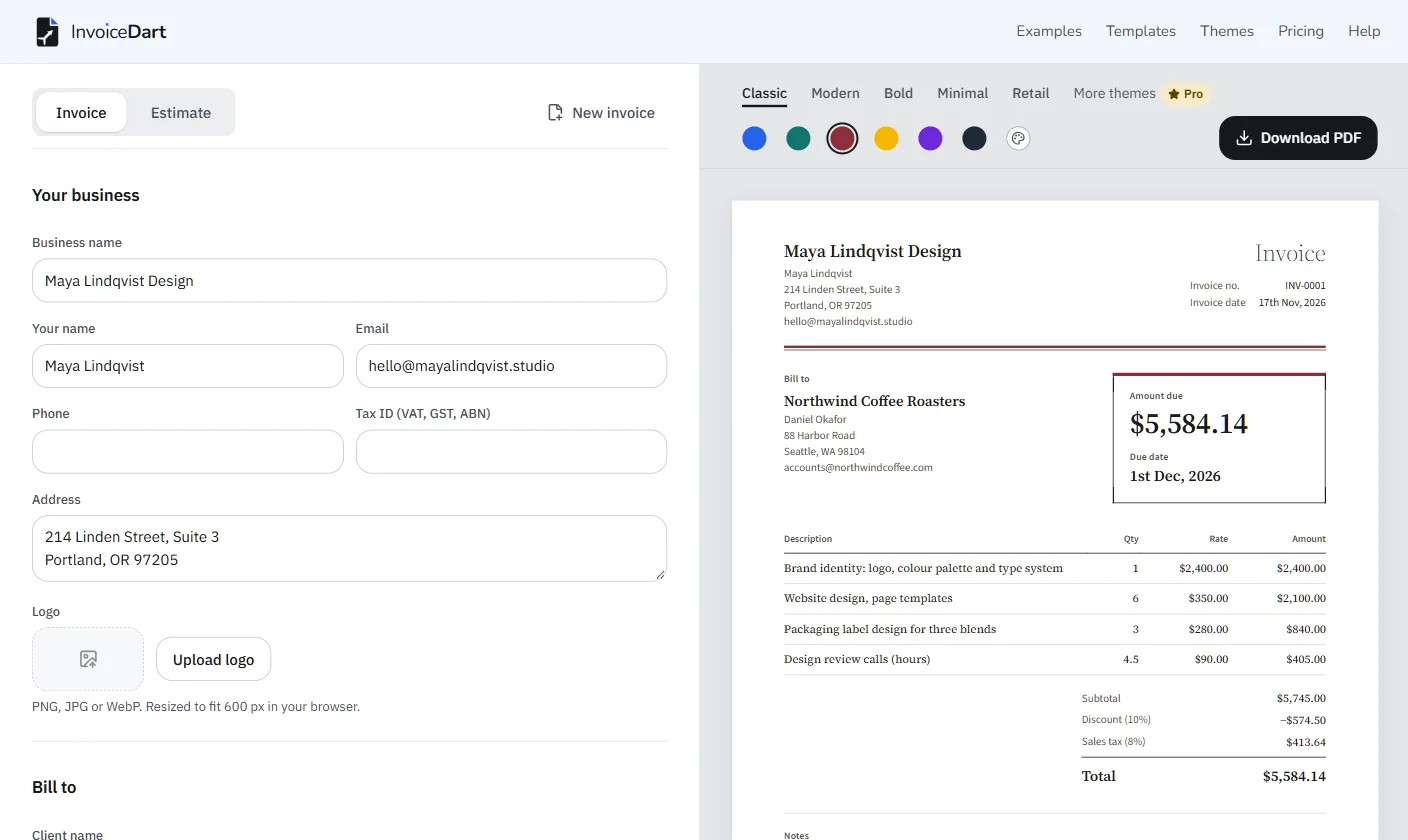
Fill in your business and your client
Add your business name, contact details, tax number and logo, then who you are billing. Your own details are remembered in this browser, so the next invoice starts with them.

Step 3
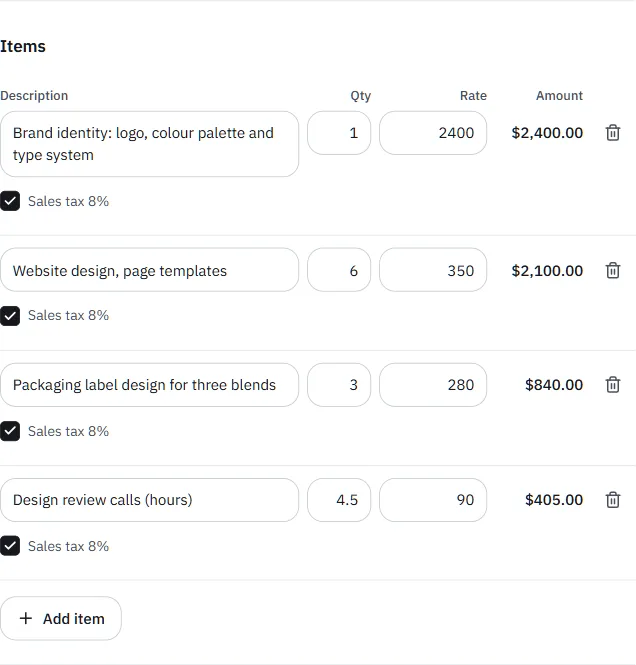
Add what you are billing for
One line per item: a description, the quantity and the rate. Add a tax and tick which lines it applies to; add a discount, shipping or an amount already paid. The totals and the amount due work themselves out.
Step 4
Pick a look and download the PDF
Above the preview, choose one of five themes and a colour. When it looks right, press Download PDF. Nothing is stored on our side: the PDF is made and handed straight back to you.

Getting started
- Do I need to sign up?
- No. Start typing and download the PDF. An account is only for founding members who want their invoices saved online.
- Is it really free?
- Yes. Making and downloading invoices and estimates is free, with no limit on how many. Pro and Business will add extras, such as a payment link and saved invoices, but the generator itself stays free.
- Can I make an estimate or a quote?
- Yes. Switch from Invoice to Estimate at the top of the form. The wording changes to match (“Valid until” instead of “Due date”), and you can change the title, for example to “Quote”.
- Can I add my logo?
- Yes. Upload a PNG, JPG or WebP under Your business. It is resized in your browser and printed at the top of the invoice.
- Which paper sizes can I use?
- A4 or US Letter. Pick one under the invoice details; the preview and the PDF follow it.
PDFs and design
- Is there a watermark?
- No. Free PDFs carry one small line at the foot, “Made with InvoiceDart.com”, and nothing over your invoice.
- Can I change the design?
- Pick one of 5 free themes and any accent colour; the preview changes as you click. See the themes.
- Can I write in Hindi, Tamil, Arabic, Chinese or other languages?
- Yes. Names, addresses, items and notes in Indian scripts, Arabic, Hebrew, Thai, Chinese, Japanese, Korean and more print correctly in the PDF, with the right fonts built in. See every language.
- Can the invoice itself be in Spanish, French or German?
- Yes. Under the invoice details, choose the language on the invoice: Spanish, French, German, Portuguese, Italian or Dutch. The printed words and dates change; what you type stays as you typed it.
- How long can an invoice be?
- Up to 200 lines. Long invoices run onto more pages; from page two, each page names your business and the invoice at the top and shows the page number at the bottom.
Taxes and countries
- Which countries does it set up for me?
- 28, including India, the United States, the United Kingdom, Canada, Australia, the UAE and Singapore. Picking your country sets the currency, the date style, the name of the tax number (GSTIN, VAT number, ABN) and the usual tax rates. Any other country works too: set the currency and taxes yourself.
- Does it work for GST invoices in India?
- Yes. It splits GST into CGST and SGST (or UTGST) for a buyer in your state and IGST for one in another, shows the place of supply, HSN or SAC codes, the amount in words and the authorised signatory, and groups amounts in lakhs. It does not file e-invoices on the GST portal (IRN and QR code).
- Does it work for VAT?
- Yes. Your VAT number and your client’s are printed, each VAT rate is totalled on its own, and lines with different rates show which one they pay.
- Will my invoice meet my country's rules?
- The country settings include the details most tax offices ask for, but rules differ by country and business. Check with your accountant or tax office if you are unsure; we cannot give tax advice.
Your data
- Is my data stored?
- Your details and drafts stay in this browser. To make the PDF, the document passes through our server and is not kept. Only founding members’ saved documents are stored, in their account. We also count a few product events, never with what you type. The privacy page lists everything.
- Where does my draft go when I close the page?
- It stays in this browser, on this device, and comes back next time. Clearing your browser’s site data, or using a private window, removes it.
- How do I delete my data?
- Your draft is deleted with your browser’s site data. For anything in an account, write to us from the contact page.
Pro and Business
- Can I pay for Pro now?
- Not yet. Pro and Business are not live yet: nothing can be bought today, and payments open later. The free generator has everything you need to make and download invoices today.
- What is a founding member?
- Someone who reserves Pro or Business at the founding price before payments open. Reserving is free and nothing is charged. Founding members get the paid features as they become ready, free until payments open, then choose whether to pay that price or stay on Free.
- Will the founding price change later?
- The prices on the pricing page are the founding prices. A founding member who decides to pay, pays the price they reserved.
Still stuck?
Write to us from the contact page and we will help.